How to show a client a website that runs only on your computer
Your site opens only at localhost, but the client needs a link. Get a temporary secure address in five minutes without hosting or router settings.
Updated:
Contents
The problem
You are building a website, and it opens in your browser at an address like http://localhost:5173. The client wants to see the progress, but that link works only on your computer. Uploading the site to hosting for a single review takes time, and every fix would need another upload.
How DevProxy solves it
DevProxy gives your website a temporary internet address like https://demo.your-workspace.devtunnels.ru. The client opens it and sees exactly what you see. You change a page, and after a refresh the client sees the change. When the review is over, close the app and the link stops working.
What you need
- The DevProxy app and an access key with the "Website or API" ready option. See How to start using DevProxy.
- A website that already opens in your browser.
Step 1. Find your website's local address
Check the address your website opens at. The tool that runs your site usually prints it, for example Local: http://localhost:5173/. The number after the colon is called a port. Remember it.
The dashboard has ready settings for popular tools in "Templates": Vite, Next.js, ASP.NET, Django, and more, each with its usual port.
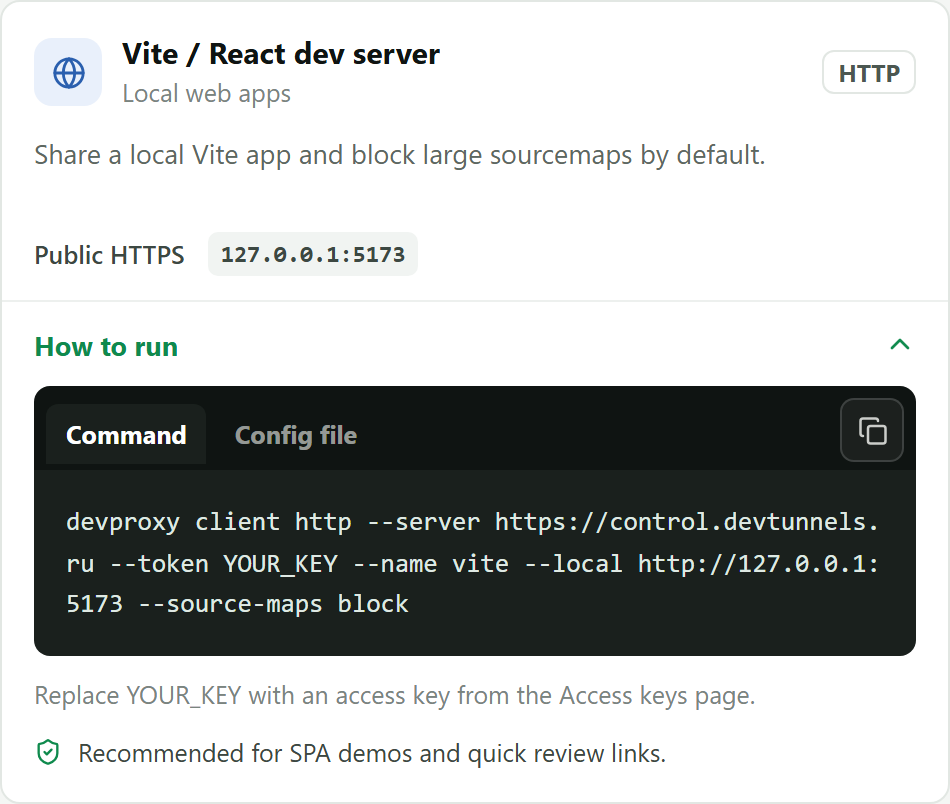
Step 2. Write the settings
Open the settings file (how to do it) and replace its contents with this text:
server: https://control.devtunnels.ru
token: YOUR_KEY
reconnect: true
tunnels:
  - name: demo
    kind: http
    local: http://127.0.0.1:5173
Replace YOUR_KEY with your key and 5173 with your website's port. The word demo becomes the start of the address. You can use your own: lowercase Latin letters, digits, and hyphens, for example shoe-shop.
Save the file.
Step 3. Start the app
In PowerShell or Terminal, run:
devproxy startStep 4. Send the link
Open "Tunnels" in the dashboard. The address is shown next to your tunnel. The button with two sheets copies it; the arrow button opens the website right away.
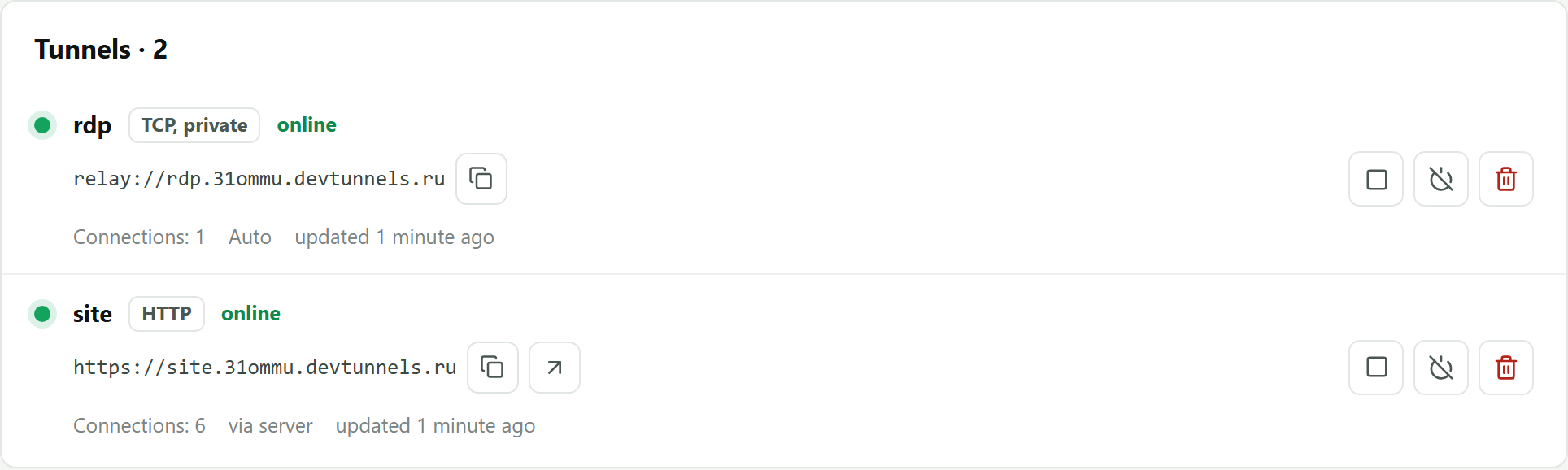
Send the address to the client. As long as the app runs on your computer, the website opens for them.
Good to know
- Anyone who has the link can open it. Do not show pages with real customer data this way if the website has no password sign-in.
- Your computer must stay on, with both DevProxy and the website running.
- When the review is over, press Ctrl+C in the app window or close it.
- Each visit uses traffic from your plan. The free 5 GB per month is usually enough for reviews.
If something went wrong
- A connection error instead of the website. Check that the site opens for you at
http://127.0.0.1:PORTand that the file has the same port. - The message "Blocked request. This host is not allowed". This is a protection of the Vite development tool: it does not recognize the new address. In
vite.config, addallowedHosts: ['.devtunnels.ru']to theserversection and restart the site. Django (ALLOWED_HOSTS) and some other tools have similar settings. - The page opens without styling. The website refers to its files by the full
localhostaddress. Make the file addresses relative or set the website address in its configuration.
Try it for free
The free plan covers every scenario in these guides.
More guides
- How to start using DevProxy: account, access key, and installation
- How to connect to your work computer from home without a public IP or VPN
- How to open Home Assistant from your phone away from home without port forwarding
- How to watch your home Jellyfin library away from home
- How to use the AI on your home computer from your phone
- How to listen to music from your home computer as your own internet radio
- How to share a folder on your computer by link
- Switching from ngrok to DevProxy: tunnels for everyday work
- How to test a GitHub webhook on localhost over HTTPS