How to open Home Assistant from your phone away from home without port forwarding
Reach Home Assistant from anywhere without a public IP, port forwarding, or a cloud subscription. Step by step: Home Assistant, the DevProxy app, and the mobile app.
Updated:
Contents
The problem
Home Assistant runs at home: you switch lights, check sensors and cameras. Away from home, the app cannot reach it. Your internet provider does not give you a public address, and you do not want to, or do not know how to, open a port on the router.
How DevProxy solves it
DevProxy runs on any home computer that stays on. It gives Home Assistant a secure address like https://home.your-workspace.devtunnels.ru. Your smart home opens from your phone anywhere, and sign-in is still protected by your Home Assistant password.
What you need
- Home Assistant that you sign in to with a user name and password.
- A home computer with Windows, Linux, or macOS that stays on. The computer running Home Assistant itself also works.
- The DevProxy app and an access key with the "Website or API" ready option. See How to start using DevProxy.
Step 1. Find Home Assistant's address in your home network
You need a numeric address such as 192.168.1.50. In Home Assistant, open Settings, then System, then Network: the address is listed under the network adapters. Home Assistant usually uses port 8123, so the full address looks like http://192.168.1.50:8123.
If Home Assistant runs on the same computer as DevProxy, the address is http://127.0.0.1:8123.
Step 2. Allow Home Assistant to accept connections through DevProxy
For security, Home Assistant rejects requests that come through an intermediary until you explicitly allow it. Without this step you will see "400: Bad Request" instead of your smart home.
Open Home Assistant's configuration.yaml. The easiest way is the File editor add-on: Settings, then Add-ons, then Add-on store; find File editor and install it. Add to the end of the file:
http:
  use_x_forwarded_for: true
  trusted_proxies:
    - 192.168.1.0/24
192.168.1.0/24 means "every device in the home network with an address 192.168.1.something". If your Home Assistant address starts with 192.168.0., write 192.168.0.0/24. If DevProxy runs on the same computer as Home Assistant, use two lines instead: - 127.0.0.1 and - ::1.
If the file already has an http: section, do not add a second one; add the lines to the existing section. Save the file and restart Home Assistant: Settings, then System, then the restart button in the top right corner.
Step 3. Set up the DevProxy app
Open the DevProxy settings file (how to do it) and replace its contents with this text:
server: https://control.devtunnels.ru
token: YOUR_KEY
reconnect: true
tunnels:
  - name: home
    kind: http
    local: http://192.168.1.50:8123
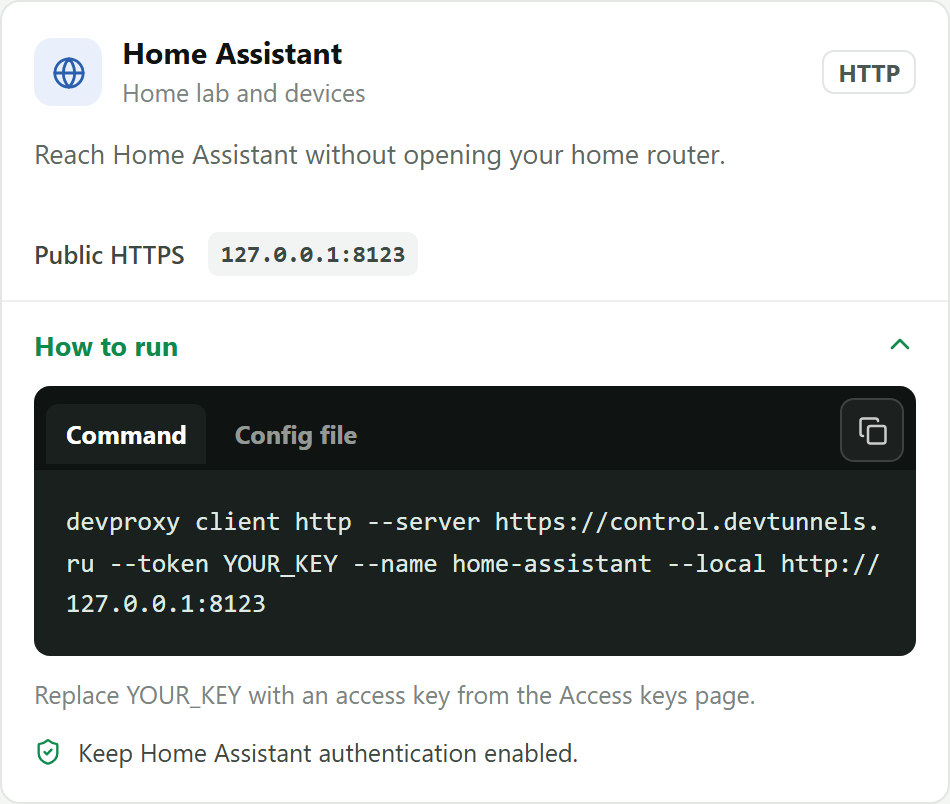
Replace YOUR_KEY with your key and put the address from step 1 in the local line. Save the file and run devproxy start. The same settings are in the dashboard under "Templates", in the Home Assistant card.
Step 4. Open your smart home on your phone
In "Tunnels" in the dashboard, copy the address of the home tunnel. Turn off Wi-Fi on your phone to test over mobile data, and open the address in the browser. You will see the usual Home Assistant sign-in page.
Step 5. Set up the mobile app
In the Home Assistant app, open Settings, then Companion app, then your server. Paste the tunnel address into the external URL field. The app now switches to it automatically when you leave home.
Good to know
- Strangers can discover the tunnel address, so protect the sign-in: a long password and two-step verification. You can turn it on in your Home Assistant profile under multi-factor authentication.
- The computer running DevProxy must stay on and not go to sleep.
- Controlling your home uses very little traffic. Watching cameras uses noticeably more.
If something went wrong
- "400: Bad Request". Step 2 is missing or lists the wrong network. The Home Assistant log then mentions a request from an untrusted proxy.
- A connection error instead of the sign-in page. Check that the address in the
localline opens in a browser on the computer running DevProxy. - The app does not connect away from home. Make sure it uses the tunnel address that starts with
https://.
Try it for free
The free plan covers every scenario in these guides.
More guides
- How to start using DevProxy: account, access key, and installation
- How to show a client a website that runs only on your computer
- How to connect to your work computer from home without a public IP or VPN
- How to watch your home Jellyfin library away from home
- How to use the AI on your home computer from your phone
- How to listen to music from your home computer as your own internet radio
- How to share a folder on your computer by link
- Switching from ngrok to DevProxy: tunnels for everyday work
- How to test a GitHub webhook on localhost over HTTPS