How to listen to music from your home computer as your own internet radio
Your music sits in a folder on your home computer, but you want to listen at work, in the car, or on your phone. How to turn the folder into an internet radio without a cloud or uploading anything.
Updated:
Contents
The problem
Over the years a computer collects its own music: albums missing from streaming services, live recordings, playlists you made yourself. It all sits in one folder at home. At work, in the car, or at a friend's place you cannot reach it: uploading gigabytes to a cloud takes ages, and music apps do not know your collection.
How DevProxy solves it
The DevProxy program turns the folder into a radio station by itself. You get an address like https://radio.your-workspace.devtunnels.ru, open it on a phone or any computer, and press Listen. Songs from the folder play one after another in random order, and the page shows what is playing now.
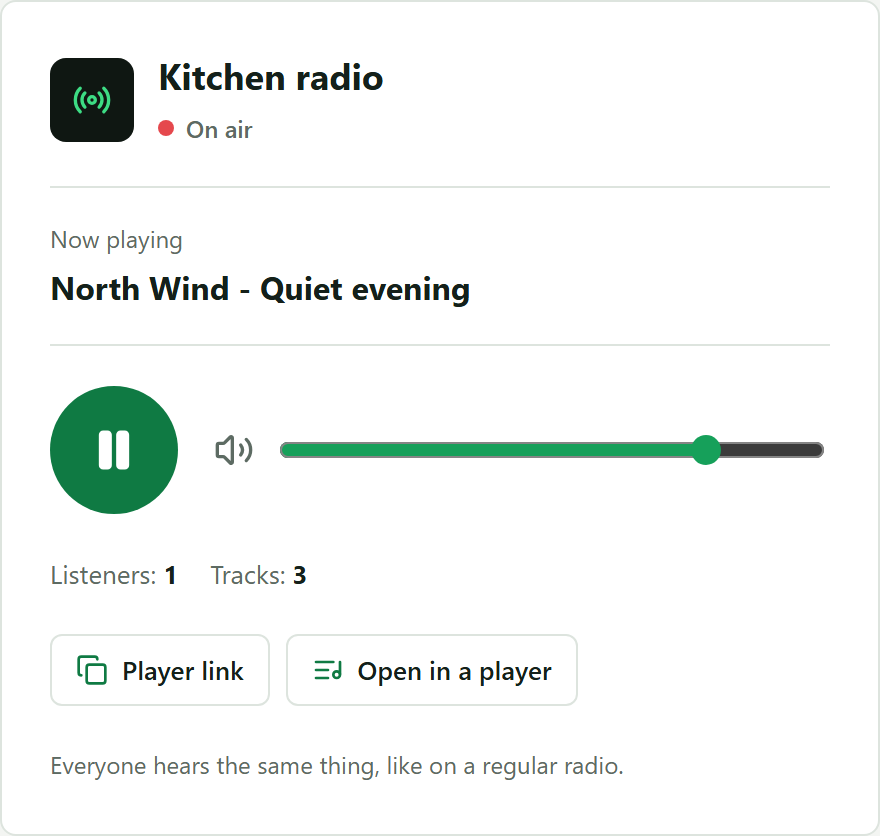
It is a real radio: all listeners hear the same thing at the same time. The broadcast link also opens in a regular player such as VLC or AIMP. Files are not uploaded anywhere and stay on your computer.
What you need
- The DevProxy program and an access key made with the "Website or API" preset. The getting started guide explains how to get both.
- A folder with music in MP3 format. Subfolders are fine: the program finds the songs in them. FLAC, M4A, and other formats are not played yet; convert them to MP3 with any converter.
Step 1. Find the path to your music folder
- Windows. Open the folder in File Explorer, click the address bar at the top of the window, and copy the path. It looks like
C:\Users\John\Music. - macOS and Linux. The usual Music folder is written as
~/Music. The~sign means your home folder.
Step 2. Write the settings
Open the settings file (the getting started guide shows how) and replace its contents with this text:
server: https://control.devtunnels.ru
token: YOUR_KEY
reconnect: true
tunnels:
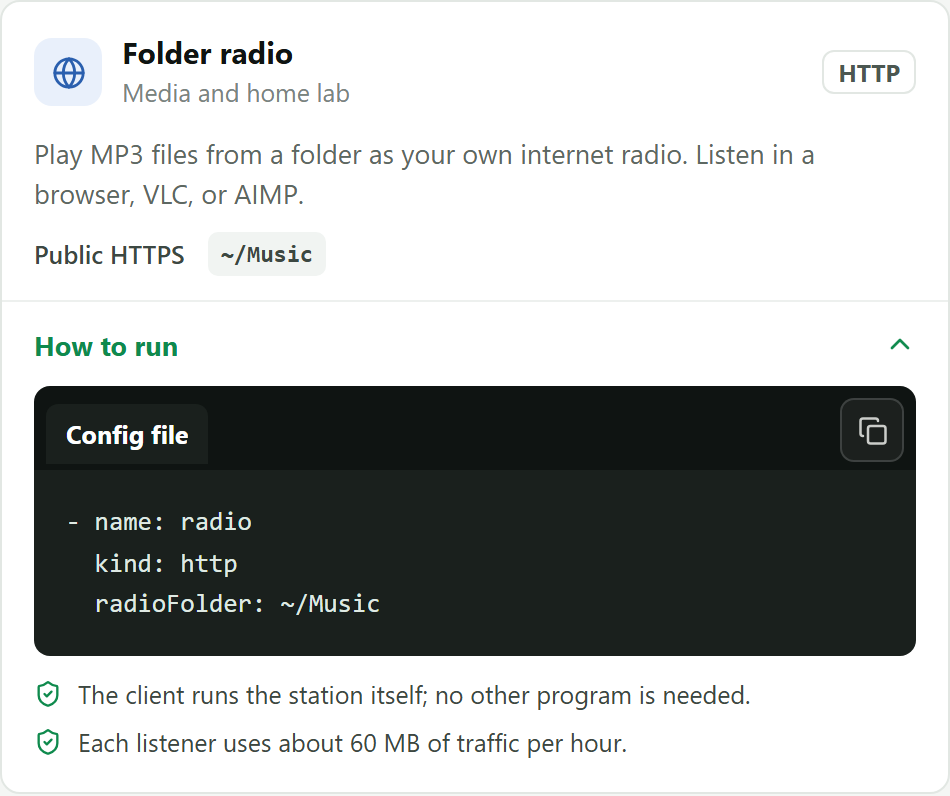
  - name: radio
    kind: http
    radioFolder: C:\Users\John\Music
    radioTitle: Kitchen radio
Replace YOUR_KEY with your key, and put the path from step 1 into the radioFolder line. The radioTitle line is the station name your listeners see. You can remove it; the station is then named after the folder.
The word radio becomes the start of the address. You can change it: lowercase Latin letters, digits, and hyphens.
Songs play in random order. To play them alphabetically, add one more line with the same indent: radioShuffle: false.
The same lines are in the dashboard, under Templates, on the "Folder radio" card.
Save the file.
Step 3. Start the program
In PowerShell or Terminal, run:
devproxy startStep 4. Turn on the radio
Open Tunnels in the dashboard. The station address is next to the radio tunnel. The button with two sheets copies it, and the arrow button opens the station.

Open the address on a phone or another computer and press the big green button. Music starts in a couple of seconds, and the artist and song title appear under "Now playing".
Step 5. Listen in your own player (optional)
You can listen outside the browser too.
- The Player link button copies the broadcast address, which ends with
/stream.mp3. In VLC choose Media, then Open Network Stream, and paste the address. In AIMP: Menu, Open URL. - The Open in a player button downloads a small
radio.m3ufile. Open it, and the player connects to the broadcast. The file is handy to keep or send to your family.
Good to know
- While nobody listens, the broadcast pauses and uses no traffic. The next listener hears it continue from the same place.
- Each listener uses about 60 MB of traffic per hour. The free 5 GB per month is enough for about 80 hours of music.
- Up to 32 people can listen at the same time.
- New songs added to the folder join the broadcast when the current round ends.
- Anyone who has the address can open the station. It is meant for personal use: do not post the link publicly, the music is protected by copyright.
- The computer with the music must be on, and DevProxy must be running.
If something does not work
- The program closes right away with "Radio folder … was not found". The path in
radioFolderhas a mistake. Copy it from the File Explorer address bar again. - The page says "There are no MP3 files in the station folder". The folder holds songs in other formats. Convert them to MP3.
- The music cuts out. Most often your home internet upload speed is not enough. One listener needs about 0.5 Mbit/s, but if someone at home downloads large files, the broadcast may stutter. The page reconnects by itself.
- The volume slider does nothing on an iPhone. That is how Safari works: volume is changed only with the phone buttons.
Try it for free
The free plan covers every scenario in these guides.
More guides
- How to start using DevProxy: account, access key, and installation
- How to show a client a website that runs only on your computer
- How to connect to your work computer from home without a public IP or VPN
- How to open Home Assistant from your phone away from home without port forwarding
- How to watch your home Jellyfin library away from home
- How to use the AI on your home computer from your phone
- How to share a folder on your computer by link
- Switching from ngrok to DevProxy: tunnels for everyday work
- How to test a GitHub webhook on localhost over HTTPS