How to watch your home Jellyfin library away from home
Movies and shows from your home computer on your phone, tablet, and TV while traveling. Reach Jellyfin without a public IP or router settings.
Updated:
Contents
The problem
Your home computer holds a collection of movies, shows, and music in Jellyfin. At home everything works, but at the cottage, on a trip, or at your parents' place the library is out of reach: the home computer cannot be reached from outside.
How DevProxy solves it
DevProxy gives your library a secure address like https://movies.your-workspace.devtunnels.ru. Open it in a browser or enter it in the Jellyfin app on your phone and TV. Sign-in is protected by Jellyfin accounts.
What you need
- Jellyfin on your home computer, with password-protected accounts for everyone who will watch.
- The DevProxy app and an access key with the "Website or API" ready option. See How to start using DevProxy.
Step 1. Check Jellyfin's address
Jellyfin usually opens on the same computer at http://127.0.0.1:8096. Open it in a browser and make sure your library is there.
Step 2. Set up the DevProxy app
Open the settings file (how to do it) and replace its contents with this text:
server: https://control.devtunnels.ru
token: YOUR_KEY
reconnect: true
tunnels:
  - name: movies
    kind: http
    local: http://127.0.0.1:8096
Paste your key, save the file, and run devproxy start. The same settings are in the dashboard under "Templates", in the Jellyfin card.
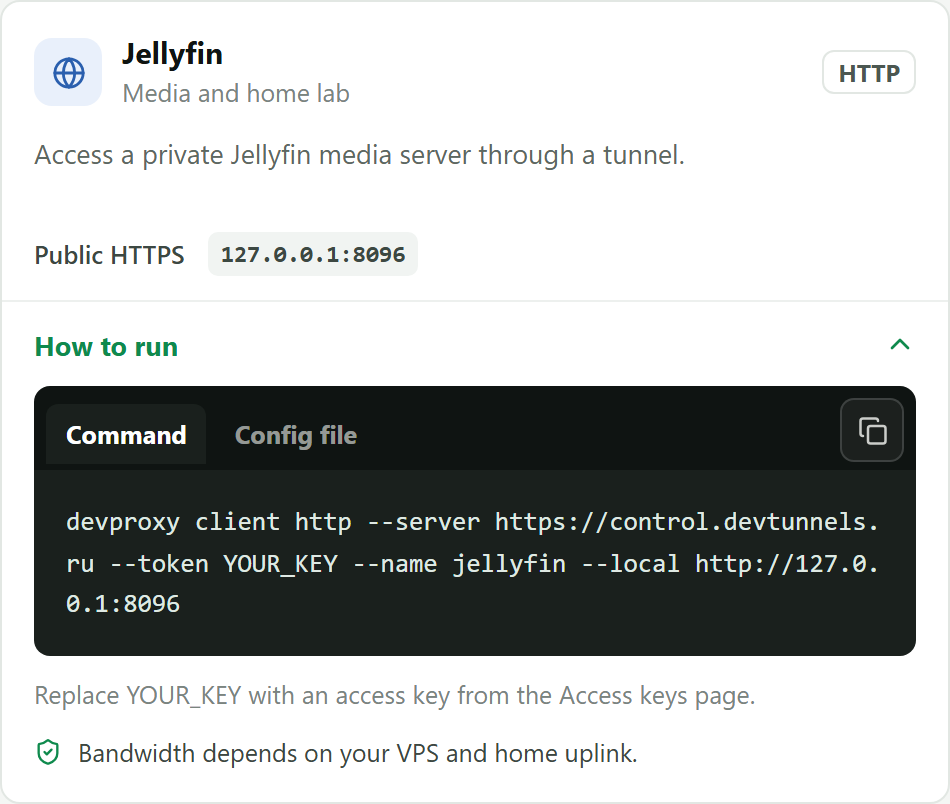
Step 3. Connect from your phone or TV
Copy the address of the movies tunnel in the dashboard. In the Jellyfin app, choose "Add server" and paste the address. Sign in with your account.
About traffic
Video uses a lot of your plan's traffic. An hour of a movie in good quality takes roughly 1 to 3 GB, so the free 5 GB per month covers a couple of movies. For regular viewing, the Pro plan with 50 GB per month fits better.
Lower quality saves traffic: in the Jellyfin player, open the playback settings and choose, for example, 720p. Video also stutters less, because the speed is limited by your home internet's upload speed.
Good to know
- Create a separate password-protected account for each family member and do not enable sign-in without a password.
- The home computer must stay on, with Jellyfin and DevProxy running.
If something went wrong
- The app cannot find the server. Make sure the address starts with
https://and that the tunnel is "online" in the dashboard. - Video keeps pausing. Lower the quality in the player: your home internet is too slow for the chosen quality.
- A warning that traffic is running out. The remaining amount is on the "Overview" page of the dashboard. Switch to a larger plan or wait until the next month.
Try it for free
The free plan covers every scenario in these guides.
More guides
- How to start using DevProxy: account, access key, and installation
- How to show a client a website that runs only on your computer
- How to connect to your work computer from home without a public IP or VPN
- How to open Home Assistant from your phone away from home without port forwarding
- How to use the AI on your home computer from your phone
- How to listen to music from your home computer as your own internet radio
- How to share a folder on your computer by link
- Switching from ngrok to DevProxy: tunnels for everyday work
- How to test a GitHub webhook on localhost over HTTPS