How to connect to your work computer from home without a public IP or VPN
Windows Remote Desktop without an open port 3389, a public IP, or a VPN. Step by step: set up the work and home computers, grant access, and connect.
Updated:
Contents
The problem
Your work computer is in the office, and you want to use it from home as if you were sitting at it. Windows has Remote Desktop for this, but the office computer cannot be reached from outside: it sits behind a router without a public address. Exposing Remote Desktop directly to the internet is dangerous: such computers face constant password-guessing attacks.
How DevProxy solves it
On the work computer, DevProxy opens Remote Desktop into a private tunnel. Nothing is exposed to the internet. On the home computer, a second copy of the app connects to that tunnel and makes the work computer available at 127.0.0.1:3390, for you only. Only a key you explicitly granted access can connect.
What you need
- A work computer with Windows 10 or 11 Pro or Enterprise. Windows Home cannot accept remote desktop connections.
- A home computer with Windows. On a Mac, use Microsoft's Windows App from the App Store.
- The DevProxy app on both computers. See How to start using DevProxy.
- The user name and password of your account on the work computer.
If the computer belongs to a company, ask its system administrator for permission first.
Step 1. Turn on Remote Desktop on the work computer
Open Settings, then System, then Remote Desktop, and turn the switch on.
Step 2. Create two keys
In "Access keys" in the dashboard, create two keys:
- Ready option "Remote desktop or TCP service", named "Work computer".
- Ready option "Connect to a private service", named "Home computer".
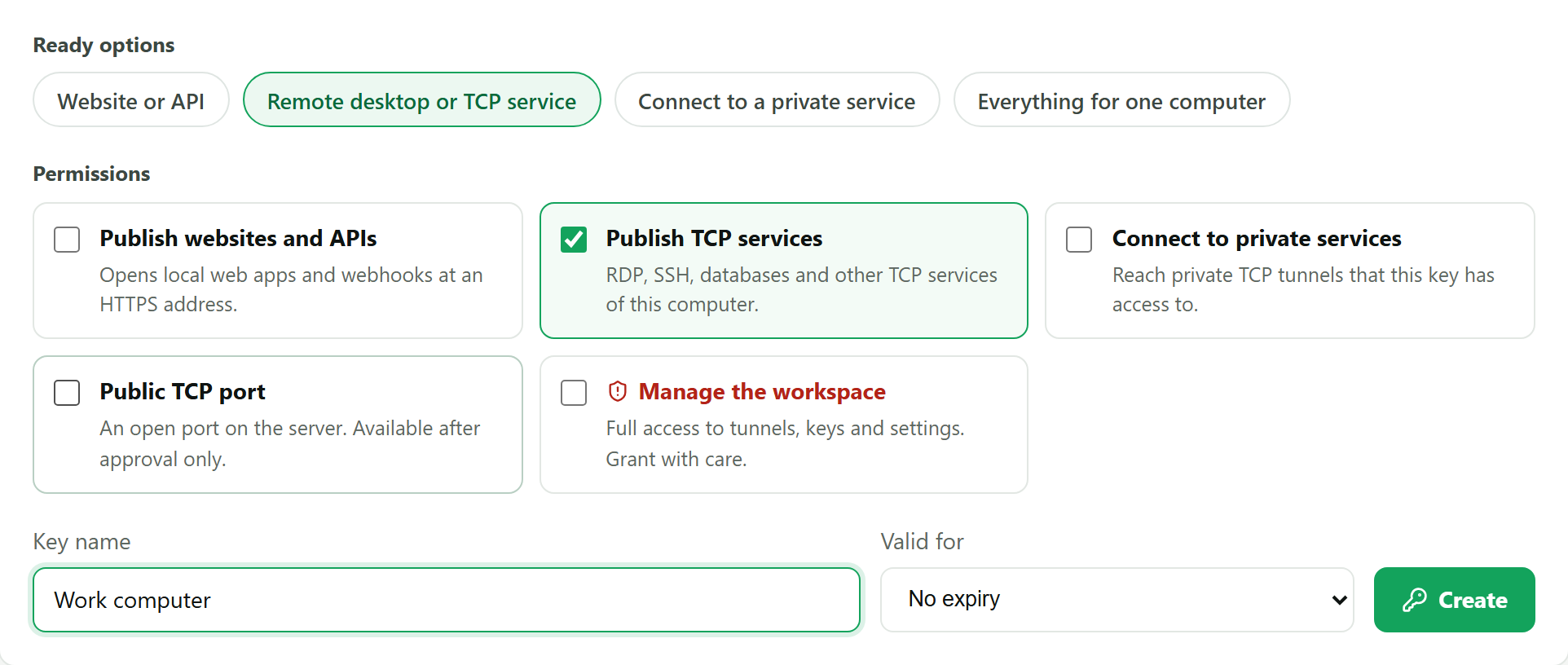
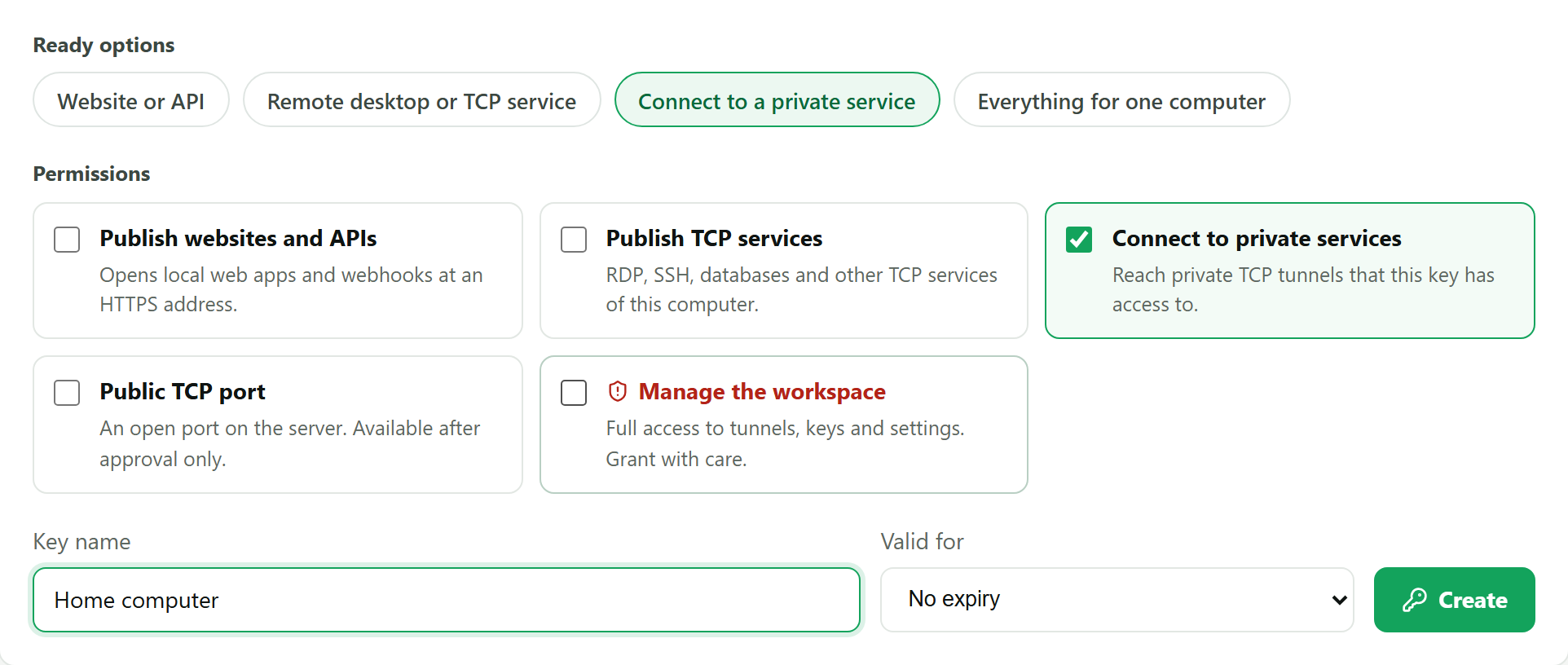
Copy and save both keys: each is shown once.
Step 3. Set up the work computer
Open the settings file on the work computer (how to do it) and replace its contents with this text. Replace WORK_COMPUTER_KEY with the first key:
server: https://control.devtunnels.ru
token: WORK_COMPUTER_KEY
reconnect: true
tunnels:
  - name: rdp
    kind: tcp
    local: 127.0.0.1:3389
    privateRelay: true
    transport: auto
    interactive: true
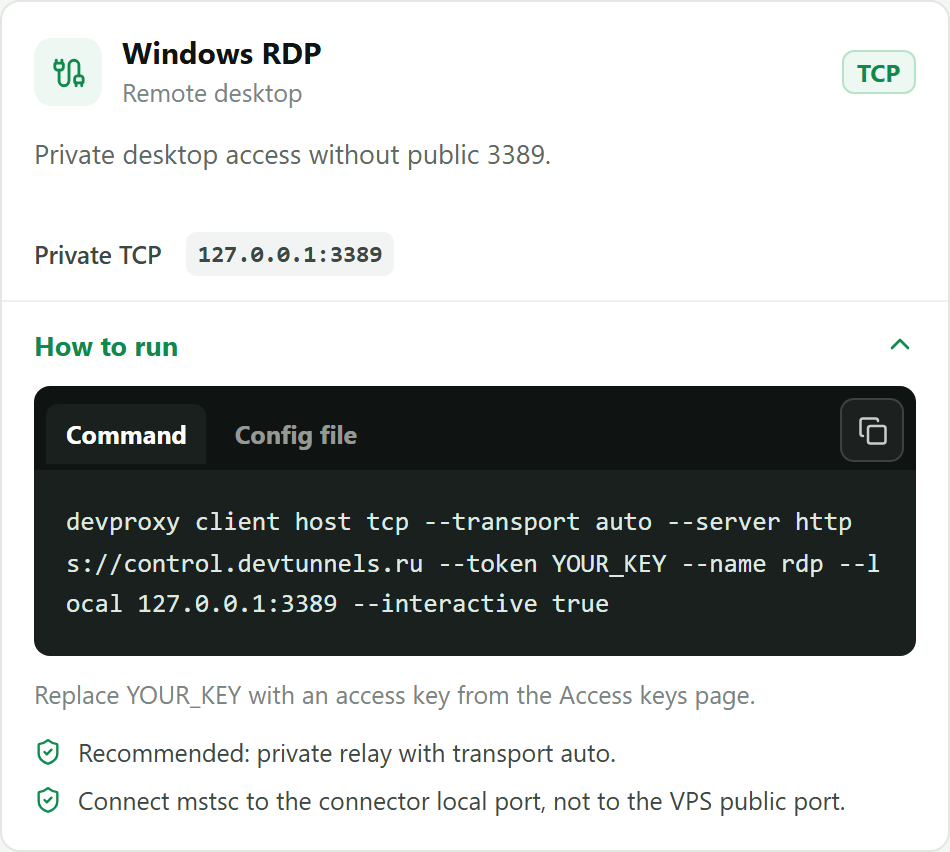
Save the file and run devproxy start in PowerShell. The same settings are in the dashboard under "Templates", in the "Windows RDP" card.
In "Tunnels" in the dashboard, the rdp tunnel appears as "online" with an address like relay://rdp.your-workspace.devtunnels.ru. Remember the part after relay://: you need it in step 5.
Step 4. Allow the home computer to connect
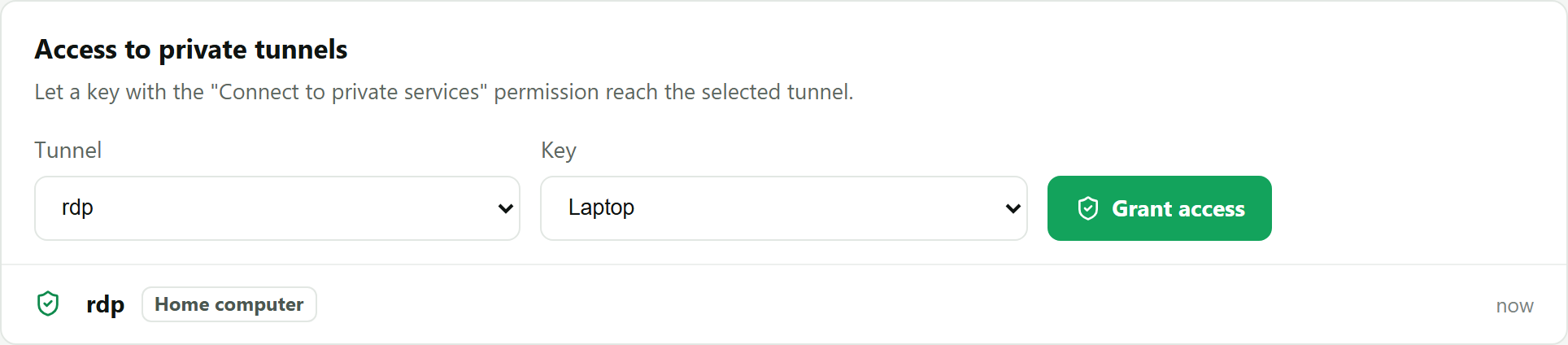
This step is required: without it the server will not let the home computer in. In "Tunnels", find the "Access to private tunnels" block. Choose the rdp tunnel and the "Home computer" key, then click "Grant access".
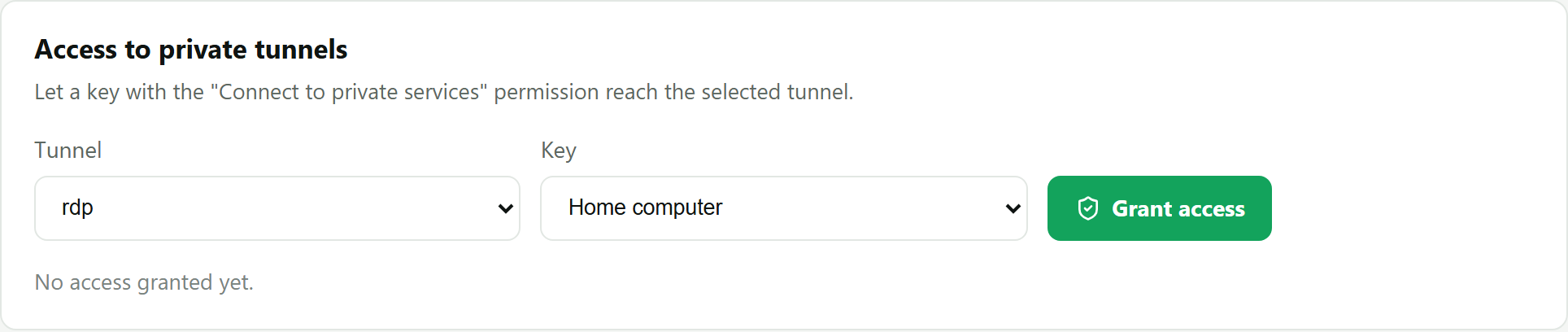
The grant appears in the list below.
Step 5. Set up the home computer
Open the settings file on the home computer and replace its contents with this text. Replace HOME_COMPUTER_KEY with the second key. In the host line, put the address you remembered in step 3:
server: https://control.devtunnels.ru
token: HOME_COMPUTER_KEY
reconnect: true
connectors:
  - kind: tcp
    host: rdp.your-workspace.devtunnels.ru
    localPort: 3390
    transport: auto
Save the file and run devproxy start in PowerShell.
Step 6. Connect
On the home computer, press Win and R, type mstsc, and click "OK". In the "Computer" field, enter 127.0.0.1:3390 and click "Connect". Enter the user name and password of your work computer account.
On the first connection, Windows may warn about the remote computer's certificate. This is normal: click "Yes".
Port 3390 is used because the usual 3389 on the home computer may be taken by its own Remote Desktop.
Good to know
- The work computer must be on and awake, with DevProxy running. Turn off sleep in the power settings.
- While you are connected, the work computer's screen is locked; DevProxy keeps running.
- The connection first tries to go directly between the computers and goes through the DevProxy server when the network does not allow that.
- The free plan is enough: this setup uses one tunnel out of three and one grant out of two. The home computer does not take a slot.
If something went wrong
- The home app keeps showing "Reconnect". Check that access was granted in step 4 and that the file has the right key. Compare the
hostline with the tunnel address in the dashboard. - "Remote Desktop can't connect to the remote computer". Make sure Remote Desktop is on and DevProxy is running on the work computer, and that the
rdptunnel is "online" in the dashboard. - Wrong user name or password. Use the work computer's account. For a Microsoft account, this is the email address and its password.
Try it for free
The free plan covers every scenario in these guides.
More guides
- How to start using DevProxy: account, access key, and installation
- How to show a client a website that runs only on your computer
- How to open Home Assistant from your phone away from home without port forwarding
- How to watch your home Jellyfin library away from home
- How to use the AI on your home computer from your phone
- How to listen to music from your home computer as your own internet radio
- How to share a folder on your computer by link
- Switching from ngrok to DevProxy: tunnels for everyday work
- How to test a GitHub webhook on localhost over HTTPS