Switching from ngrok to DevProxy: tunnels for everyday work
Share local websites, APIs, webhooks and WebSocket services with DevProxy. Manage tunnels in a local UI and use file sharing, private TCP and folder radio workflows.
Updated:
Contents
Your app works on localhost. A teammate asks for a link, or a webhook provider needs to reach the handler you are testing. Moving the whole project to a server just to share that one thing can feel like extra work.
DevProxy gives the local service an HTTPS address and a browser panel on your computer for managing its tunnels. Websites and APIs, incoming webhooks, WebSocket connections and TCP services are all part of the core toolkit. File sharing, private access and a radio player built from your own MP3 folder are ready-made workflows alongside them.
Keep the workflows you already use
For a website demo, an HTTP tunnel forwards requests to the app running on your computer. For a webhook, use the tunnel address with the handler's route. If the app uses WebSocket for live messages or updates, DevProxy supports that too.
TCP has two useful paths. A private tunnel gives a separately authorised client access to the service. Public TCP is available when the access key and plan allow it. A remote desktop does not have to become a publicly exposed RDP port by default.
Those are the main everyday jobs to consider when moving from ngrok. If you depend on a particular advanced policy or limit, check that requirement separately before switching.
Add a tunnel in the local panel
You do not have to edit YAML each time another app needs a link. DevProxy's local browser panel lets you create and edit channels, then start, stop or restart them.
First set up your DevProxy account, access key and client. Then:
- Start the client and open the local panel address it reports. Use the panel access code from the client output or startup log.
- Open Channels and choose Create channel.
- Choose HTTP, enter a name such as
demo, and set the local address to the working app URL, for examplehttp://127.0.0.1:3000. - Save the channel and start it. Select Save to the original YAML if you want it to persist after the client restarts.
The panel runs on the client computer; it is separate from the account dashboard on the website. Copy the actual address from the client rather than assuming a fixed panel port.
Prefer a settings file? Add one entry to the existing tunnels list and keep the other entries:
  - name: demo
    kind: http
    local: http://127.0.0.1:3000
YAML and the command line remain useful alternatives. If the client is already running, apply changed file settings by restarting it in the way you normally manage it. Repeating devproxy start is not a substitute for that restart.
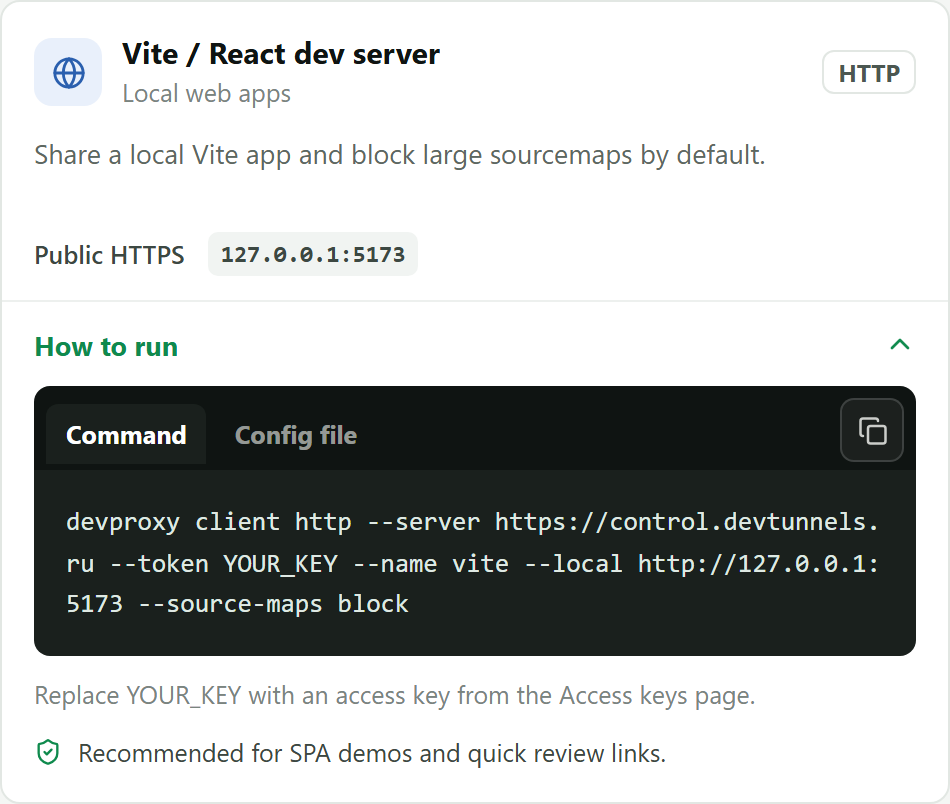
This is a template in the web dashboard, not the local panel. Its name and port are examples; use your app's working local address.
One link often leads to another use case
A project demo may be the first reason you install a tunnel client. Later you may want to get a file from home, reach a remote desktop or listen to your own music from another device.
DevProxy has guides for an approved folder shared by link, remote desktop over private TCP and a radio station from an MP3 folder. File channels use a registered device, an approved directory and separate permissions. The radio workflow supplies the player page and stream.
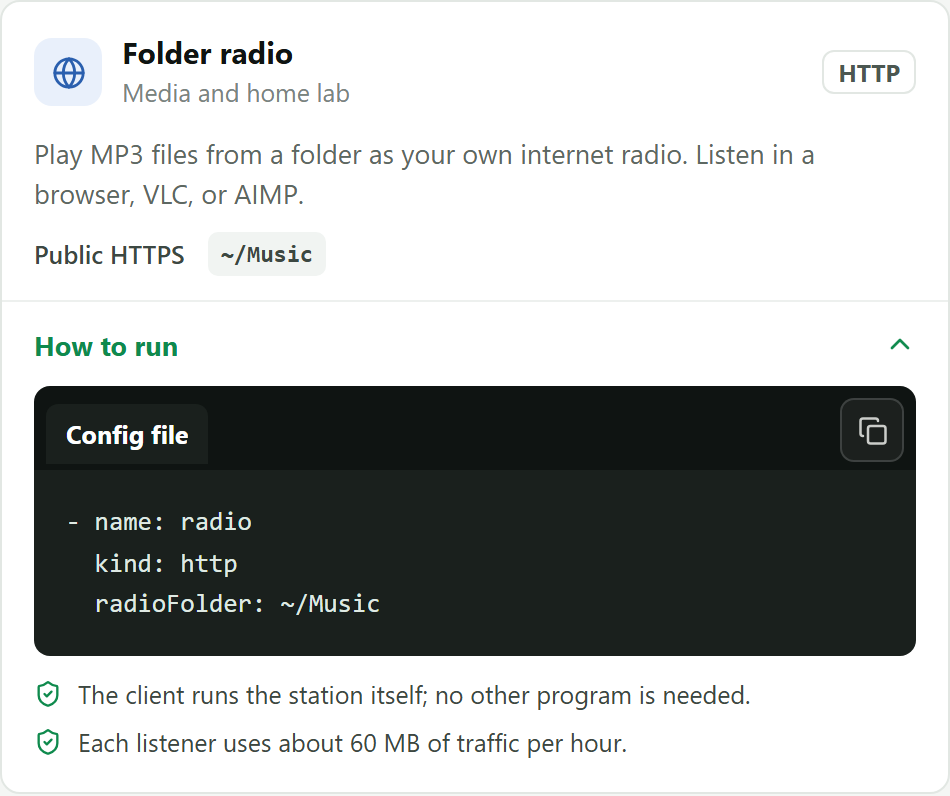
The practical benefit is having these tasks together in one client, with the same place to manage the channels.
Move one service first
Keep the old ngrok endpoint until you have checked the new DevProxy link from another device or network. The public URL changes; existing ngrok links and policies do not migrate automatically.
Keep application sign-in enabled for private content. A client access key authorises the tunnel, but it does not automatically put a login prompt in front of a public page. Leave the computer and client on while the service needs to be reachable.
Start with one local website. A working link for a real task will tell you more about how DevProxy fits your day than a feature list alone.
Try it for free
The free plan covers every scenario in these guides.
More guides
- How to start using DevProxy: account, access key, and installation
- How to show a client a website that runs only on your computer
- How to connect to your work computer from home without a public IP or VPN
- How to open Home Assistant from your phone away from home without port forwarding
- How to watch your home Jellyfin library away from home
- How to use the AI on your home computer from your phone
- How to listen to music from your home computer as your own internet radio
- How to share a folder on your computer by link
- How to test a GitHub webhook on localhost over HTTPS