How to start using DevProxy: account, access key, and installation
A step-by-step guide for beginners: create a DevProxy account, get an access key, install the app on Windows, Linux, or macOS, and start it with one command.
Updated:
Contents
This guide covers the setup shared by every task: an account, an access key, and the app on your computer. The other guides refer back here, so start with this one.
What DevProxy is, in plain words
Say a program on your computer opens in a browser: a website, a smart home panel, a home media library. At home it works, but from elsewhere it does not: your router blocks connections from outside, and a public IP address from your internet provider costs extra or is not available at all.
DevProxy solves this without router settings and without a VPN. A small app on your computer connects to our server by itself, and the program you choose gets its own address on the internet. Such a protected connection is called a tunnel. While the DevProxy app is running, the address works. Close the app, and outside access stops.
What you need
- A computer with Windows 10 or 11, Linux, or macOS, connected to the internet.
- An email address.
- About ten minutes.
Step 1. Create an account
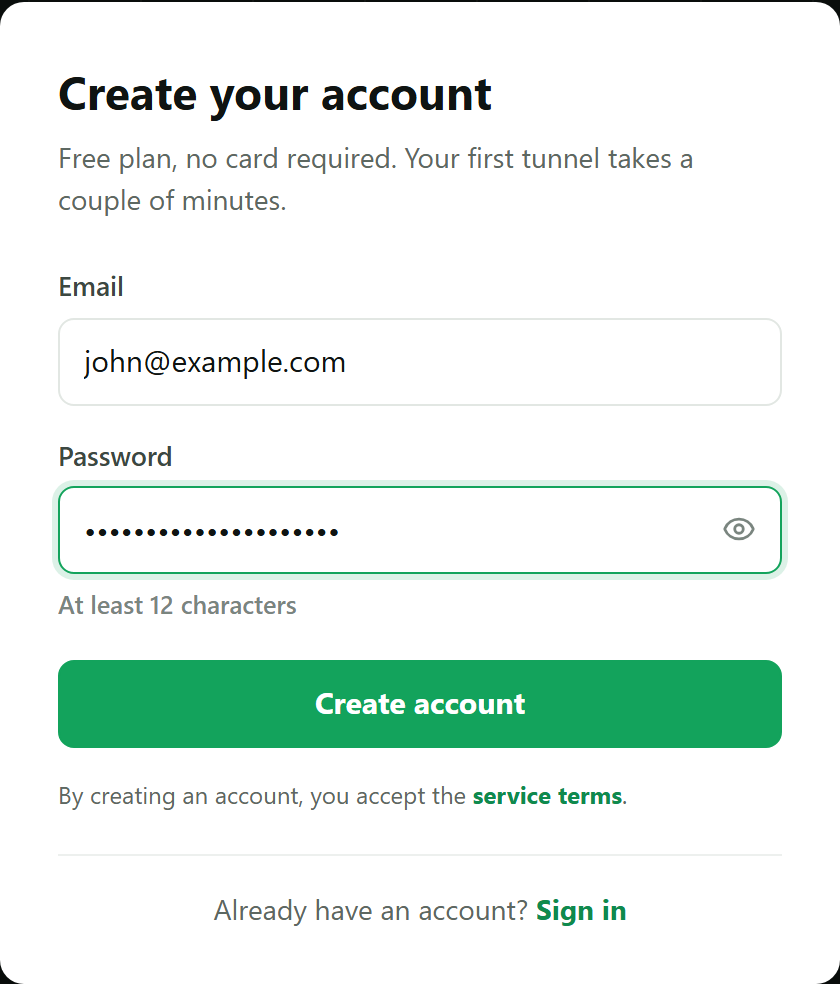
Open devtunnels.ru and click "Start free". Enter your email and a password of at least 12 characters. Click "Create account".
Step 2. Confirm your email
You will receive an email with a six-digit code. Enter the code on the page that opens, or click "Confirm email" right in the email.
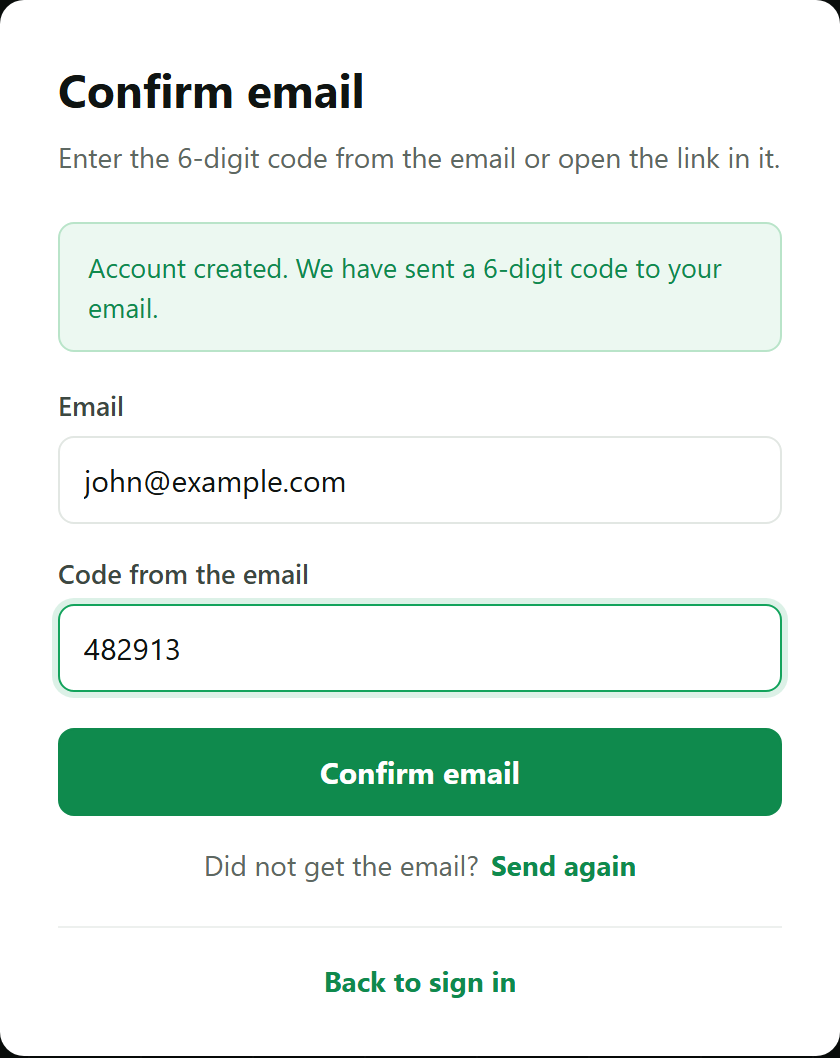
No email after a few minutes? Check the spam folder. If it is not there either, click "Send again" to get a new email with a new code.
Step 3. Create an access key
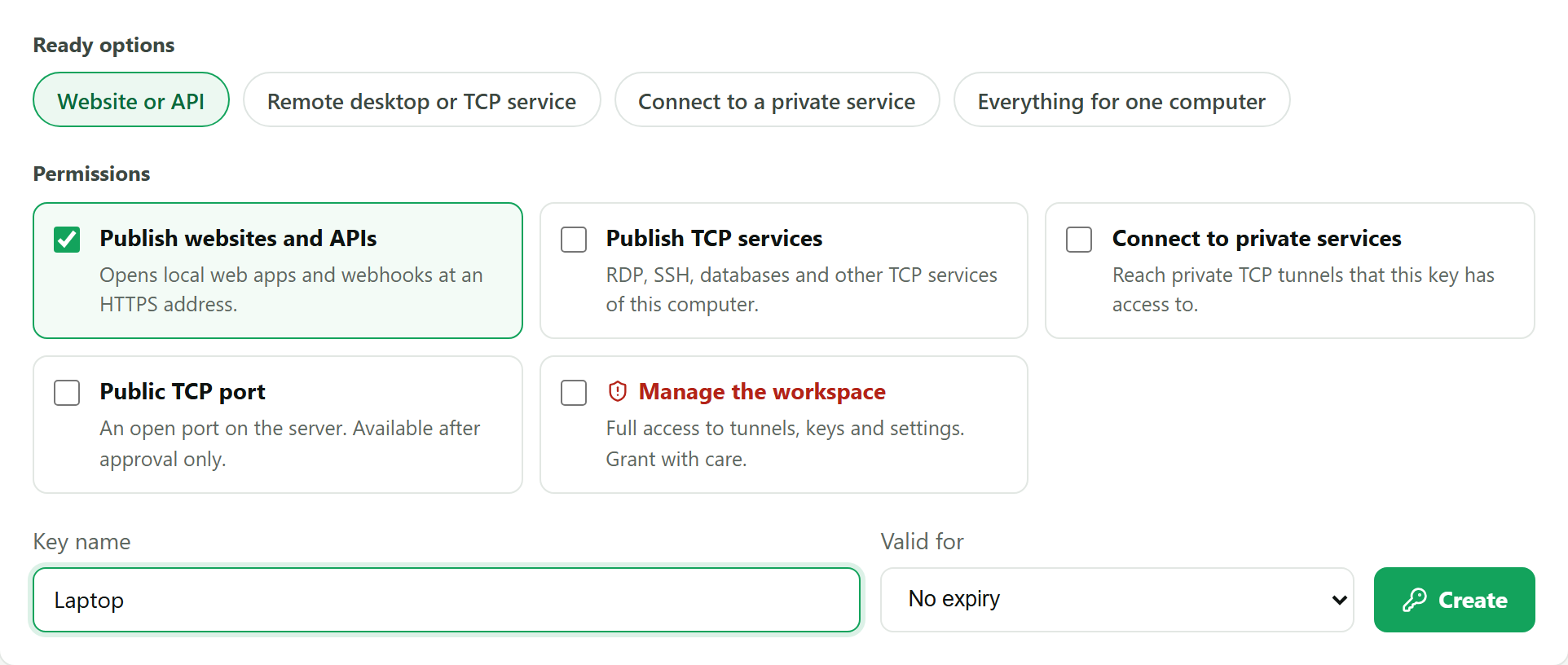
The app on your computer needs an access key so the server knows it is you. In the dashboard, open "Access keys". The "New key" block offers ready options; pick the one for your task:
| What you want to do | Ready option |
|---|---|
| Open a website, smart home, media library, or AI chat from outside | "Website or API" |
| Let other computers reach this computer over remote desktop | "Remote desktop or TCP service" |
| Connect from this computer to another computer of yours | "Connect to a private service" |
Give the key a clear name, such as "Laptop" or "Home computer", and click "Create".
The key is shown only once. Click "Copy" and save it, for example in your notes. If you lose it, simply create a new one.
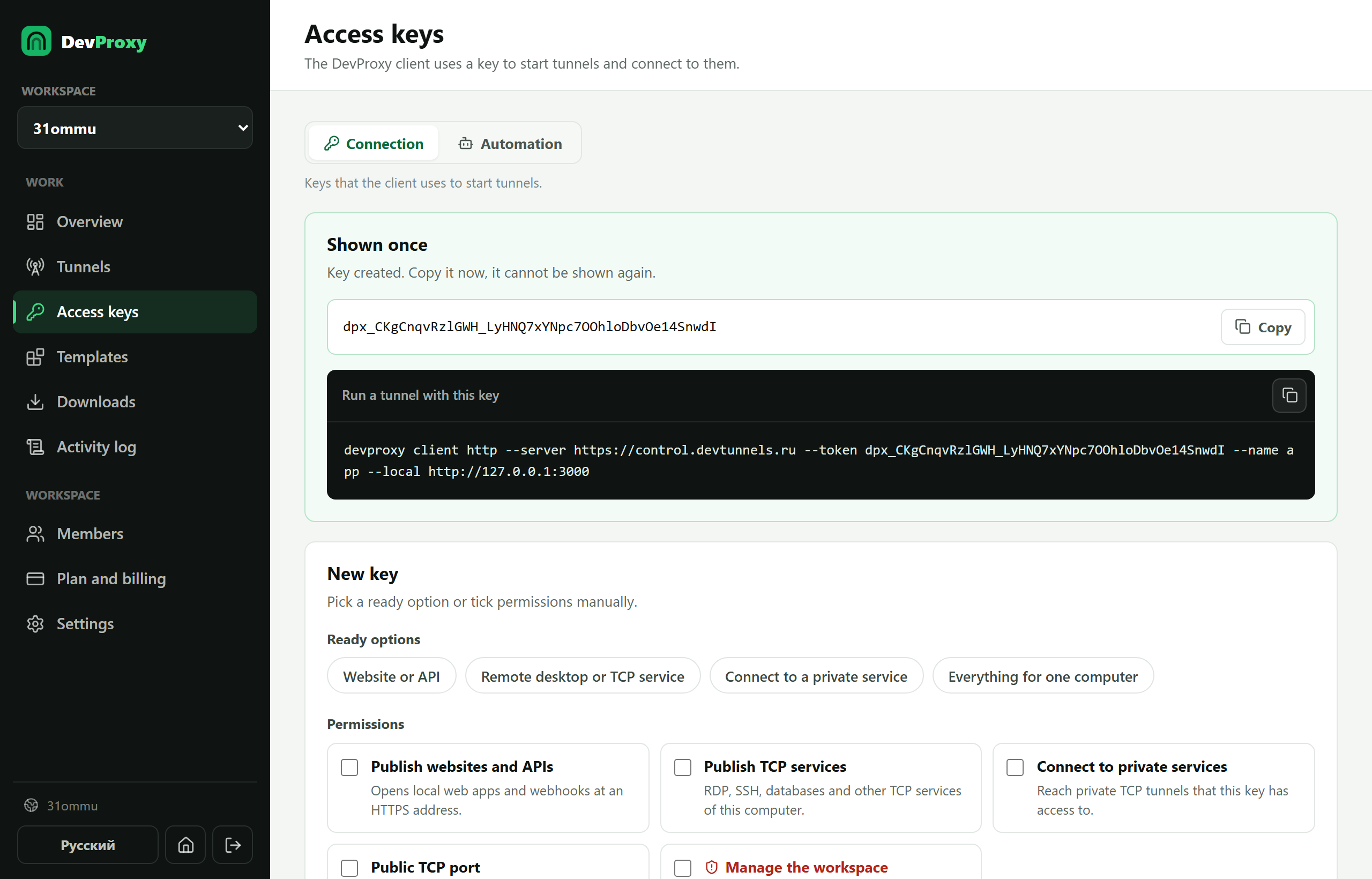
A key works like a password: do not send it to other people or publish it. You can revoke a key you no longer need in the same section.
Step 4. Install the app
Open "Downloads" in the dashboard. The site detects your system and suggests the right file.
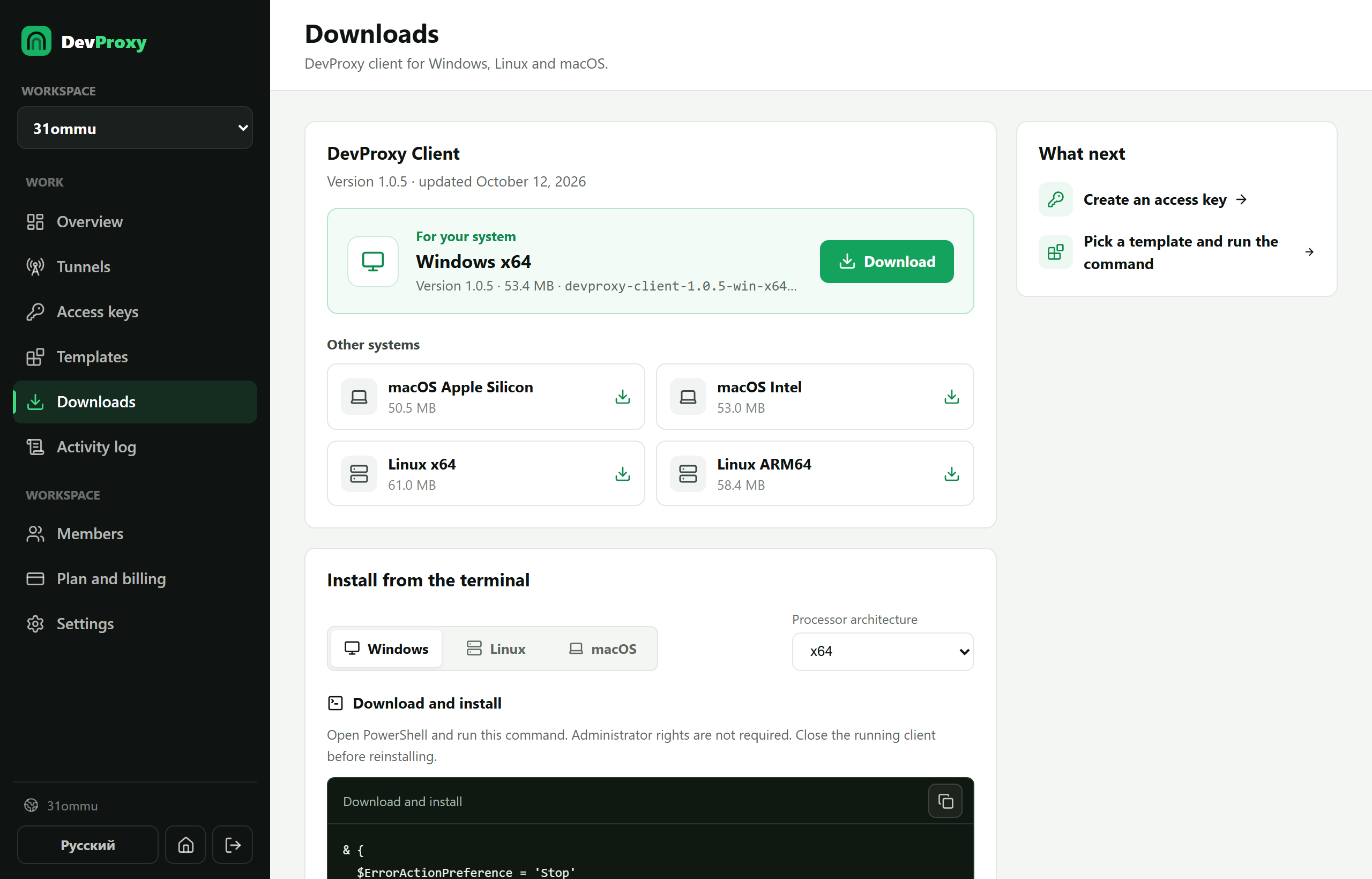
Windows, option 1: installer. Click "Download" and run the file. If Windows shows "Windows protected your PC", click "More info", then "Run anyway". Windows warns this way about any new program without a digital signature; it does not mean anything dangerous was found.
Windows, option 2: one command. In the "Install from the terminal" block, copy the command. Open the Start menu, find and run PowerShell, paste the command with a right click, and press Enter. Administrator rights are not needed, and Windows usually shows no warning this way.
Linux and macOS. In the "Install from the terminal" block, choose your system, copy the command, paste it into Terminal, and press Enter.
Step 5. Add the key to the settings file
During installation the app created a settings file. Open it:
- Windows: press Win and R, paste
notepad %APPDATA%\DevProxy\devproxy.yml, and click "OK". - macOS: in Terminal, run
open -e ~/.config/devproxy/devproxy.yml. - Linux: in Terminal, run
nano ~/.config/devproxy/devproxy.yml.
Find the line token: PASTE_YOUR_ACCESS_KEY_HERE and replace PASTE_YOUR_ACCESS_KEY_HERE with your key. What else goes into the file depends on the task: every guide includes the complete file text, which you can paste over the old one.
Save the file: in Notepad, press Ctrl+S.
Two rules keep the file readable. Indents at the start of lines are spaces, not the Tab key, and their number matters. Do not remove the colons after setting names.
Step 6. Start the app
Open a new PowerShell window (Terminal on Linux and macOS) and run:
devproxy startThe app shows a table. When the status column says "Ready", everything works. In the dashboard, the "Overview" page marks the tunnel as "online".
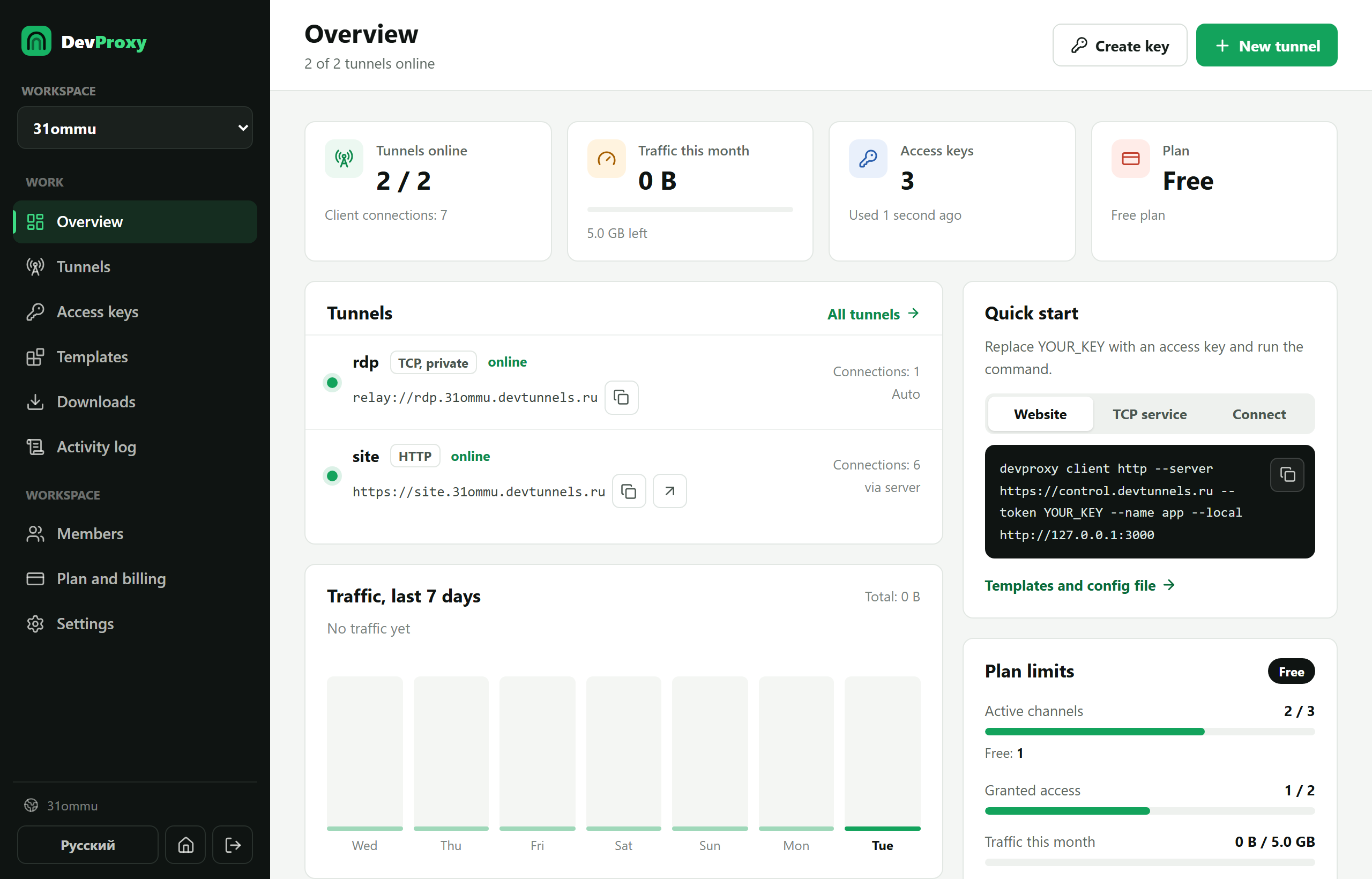
Keep the app window open: access works while it is open. To stop, press Ctrl+C in the window or just close it.
If something went wrong
- "devproxy is not recognized as a command". Close the PowerShell window and open a new one: after installation the command appears only in new windows.
- "Set token to your access key". The key is not in the file, or the file was not saved.
- The table shows "Reconnect" and error 401 or 403. The key has a typo, was revoked, or has different permissions. Create a new key with the right ready option.
- Access drops at night. The computer goes to sleep. If you need constant access, turn off sleep in the power settings.
What it costs
The free plan is enough to try every scenario in our guides: up to three tunnels at a time, 5 GB of traffic per month, and two grants for private tunnels. Pro costs 149 RUB per month and gives 10 tunnels and 50 GB of traffic; Team costs 999 RUB per month and gives 50 tunnels and 500 GB. Current prices are on the pricing page.
What next
Try it for free
The free plan covers every scenario in these guides.
More guides
- How to show a client a website that runs only on your computer
- How to connect to your work computer from home without a public IP or VPN
- How to open Home Assistant from your phone away from home without port forwarding
- How to watch your home Jellyfin library away from home
- How to use the AI on your home computer from your phone
- How to listen to music from your home computer as your own internet radio
- How to share a folder on your computer by link
- Switching from ngrok to DevProxy: tunnels for everyday work
- How to test a GitHub webhook on localhost over HTTPS