How to share a folder on your computer by link
You need to send lots of photos or documents, but email rejects large attachments and uploading to a cloud takes ages. How to open one folder on your computer by link: the recipient views and downloads files in a browser.
Updated:
Contents
The problem
Your parents want the party photos, your accountant needs a stack of documents, a colleague asks for a project archive. Email rejects large attachments, messengers compress photos, and uploading gigabytes to a cloud takes the whole evening. Meanwhile, all the files are already on your computer.
How DevProxy solves it
The DevProxy program opens one chosen folder by link. The recipient opens the link in any browser, on a computer or a phone, and sees the files and subfolders. Photos and text files can be viewed right in the browser, and any file can be downloaded. Nothing needs to be installed.
Files are not uploaded anywhere: your computer sends them when the recipient presses Download. Nothing outside the chosen folder is reachable through the link.
What you need
- The DevProxy program and an access key made with the "Website or API" preset. The getting started guide explains how to get both.
- The folder you want to share.
- About ten minutes for the first setup. File access is protected more strictly than showing a website, so the computer is registered in the dashboard once. After that, adding a folder takes a minute.
Run all commands below in PowerShell (Windows) or Terminal (macOS and Linux).
Step 1. Register the computer in the dashboard
Open Access keys in the dashboard and switch to the Automation tab. Enter a name for the computer, for example "Home computer", and press Register.

The device secret appears. Press "Download device file": the browser saves devproxy-device.json to your Downloads folder. The secret is shown only once, so download the file right away, then press Done.
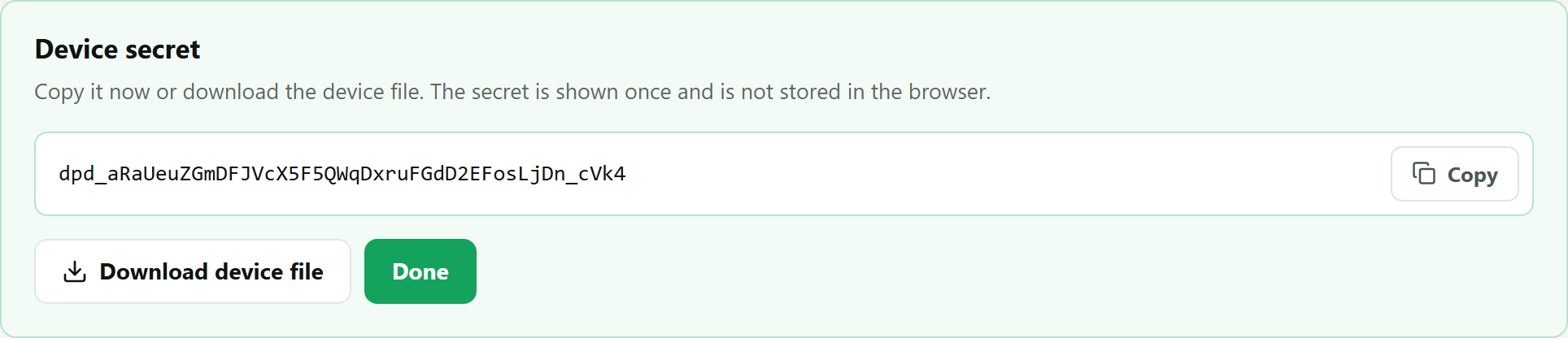
Move the file to the program's settings folder:
- Windows:
Move-Item "$HOME\Downloads\devproxy-device.json" "$env:APPDATA\DevProxy\" - macOS and Linux:
mv ~/Downloads/devproxy-device.json ~/.config/devproxy/ && chmod 600 ~/.config/devproxy/devproxy-device.json
Step 2. Issue a key for the computer
Further down the same tab is the "Keys for this device" block. Tick two permissions: "Start and stop" and "Create and change". Leave the rest unticked. Enter a key name, for example "Folder link", and press Issue key.
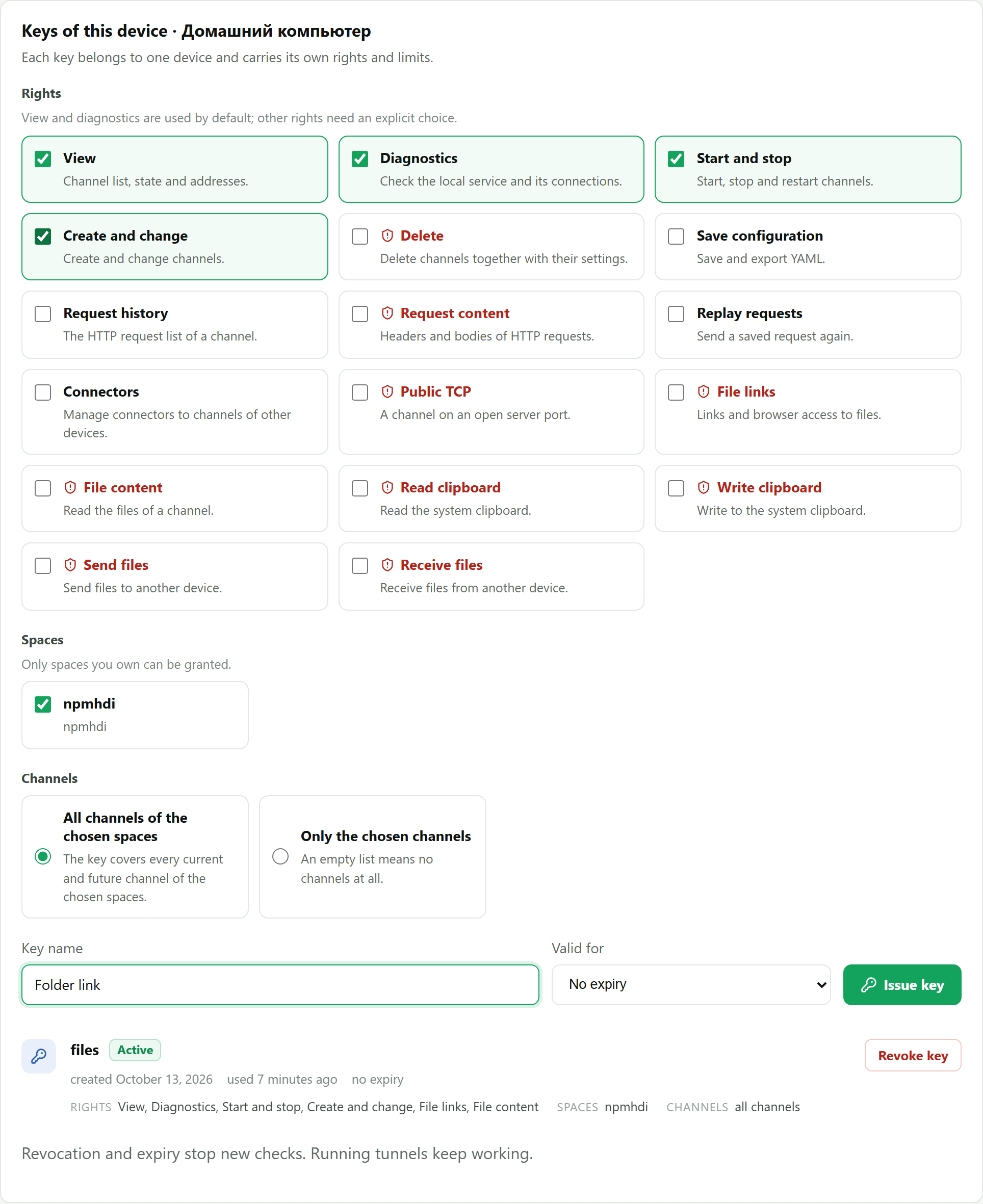
The dashboard shows a key that starts with dpk_. Copy it and save it to an owner.key file next to the settings, replacing DEVICE_KEY with your key:
- Windows:
Set-Content -NoNewline "$env:APPDATA\DevProxy\owner.key" "DEVICE_KEY" - macOS and Linux:
(umask 077; printf '%s' 'DEVICE_KEY' > ~/.config/devproxy/owner.key)
This key works only together with the device file on this computer. Never send it to anyone.
Step 3. Allow access to the folder
The program shares only a folder you have allowed yourself. Run the command with the path to your folder:
devproxy roots add --path "D:\Party photos"On macOS and Linux the path looks like --path "/Users/john/Pictures/Party". The command prints a long number like 3475711d-913b-42d2-98d1-c63064b3e9ae. Copy it; you need it in the next step.
Step 4. Write the settings
Open the settings file (the getting started guide shows how) and replace its contents with this text:
server: https://control.devtunnels.ru
token: YOUR_KEY
reconnect: true
tunnels:
  - name: photos
    kind: http
    purpose: fileAccess
    role: creator
    rootId: 3475711d-913b-42d2-98d1-c63064b3e9ae
    fileAccessMode: download
automation:
  enabled: true
  deviceFile: devproxy-device.json
  ownerStartupKeyFile: owner.key
Replace YOUR_KEY with your regular access key from the first guide (it starts with dpx_), and put the number from step 3 into the rootId line. The word photos becomes the start of the address.
The fileAccessMode line decides what the recipient can do:
| Value | What the recipient can do |
|---|---|
view | Only look: the file list, photos, and text in the browser |
download | Look and download any file |
Save the file.
Step 5. Start the program and send the link
Run:
devproxy startThe window shows lines about a local panel code and a connection for AI assistants. You do not need them for this task.
Open Tunnels in the dashboard and copy the address of the photos tunnel. Send it to the recipient. They see your folder:
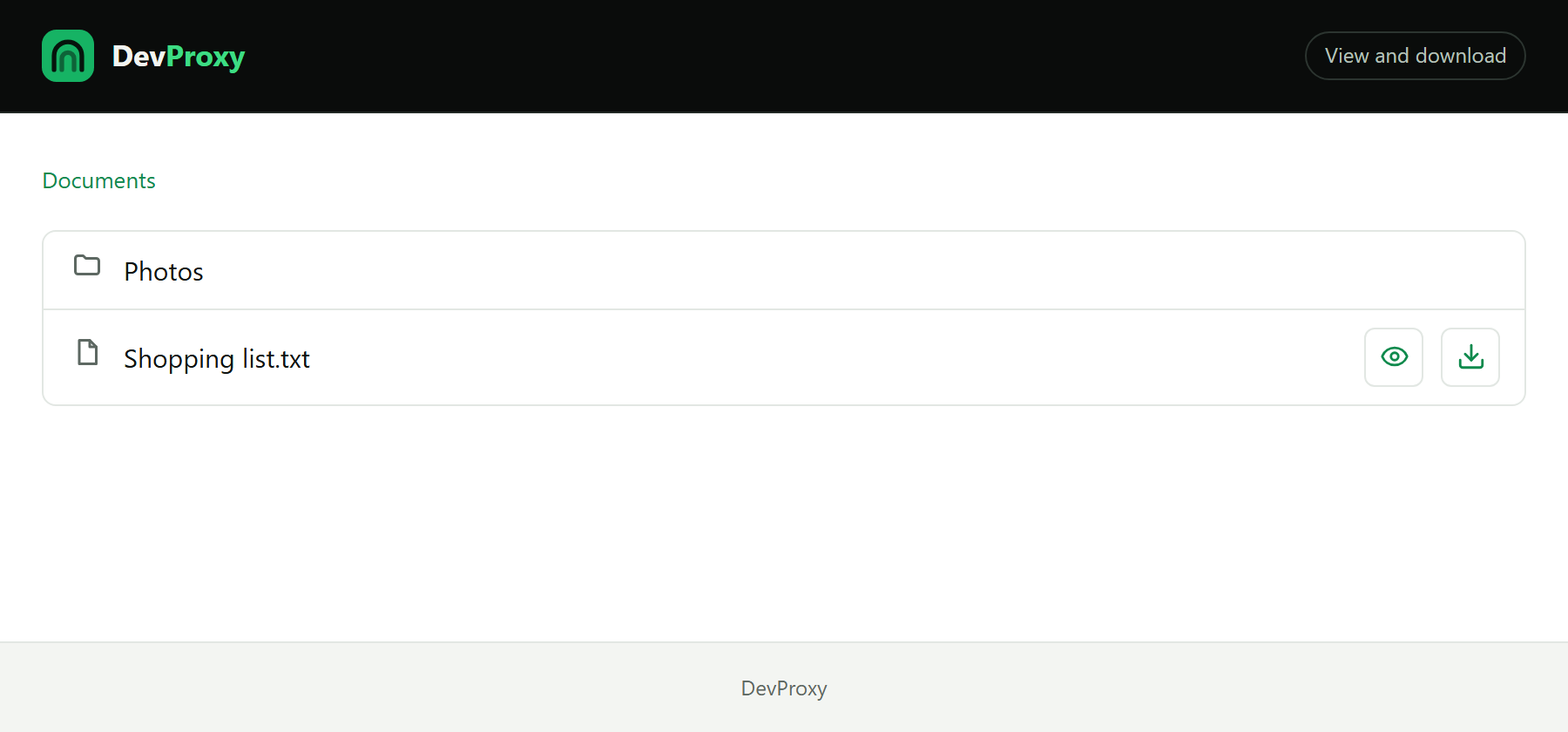
The eye icon opens a file for viewing, the arrow downloads it. The view page has a Download button too.
Sharing another folder
Allow it with the command from step 3 and replace the number in the rootId line. You can share several folders at once: add another entry under tunnels with a different name and its own number. Each folder takes one slot of your plan, like a regular tunnel.
Good to know
- Anyone with the link can open the folder. Do not put anything there you are not ready to show strangers.
- Files cannot be changed, uploaded, or deleted through the link. The recipient can only look and, if you allow it, download.
- The computer with the folder must be on, and DevProxy must be running. When you are done, press Ctrl+C in the program window, and the link stops working.
- Downloads use your plan's traffic. The free 5 GB per month is enough for several photo albums, for example.
- One-time links and links with an expiry date for a single file are created only through the local API and MCP for now, that is, with helper programs.
If something does not work
- The program says "File channels require a device file and a private owner startup key". Check that
devproxy-device.jsonandowner.keyare in the same folder as the settings file. On macOS and Linux, both files must be readable only by you: runchmod 600on each. - The program says "File channel settings or approved root are unavailable". The number in
rootIddoes not match an allowed folder. Thedevproxy roots listcommand shows allowed folders. - The events show "file channel stopped (file_channel_permit_denied)". The device key lacks permissions. Issue a new key with "Start and stop" and "Create and change" and save it to
owner.key. - Instead of the folder, the page says "The shared folder is not available right now". The folder was renamed, moved, or deleted. Allow it again with the command from step 3.
Try it for free
The free plan covers every scenario in these guides.
More guides
- How to start using DevProxy: account, access key, and installation
- How to show a client a website that runs only on your computer
- How to connect to your work computer from home without a public IP or VPN
- How to open Home Assistant from your phone away from home without port forwarding
- How to watch your home Jellyfin library away from home
- How to use the AI on your home computer from your phone
- How to listen to music from your home computer as your own internet radio
- Switching from ngrok to DevProxy: tunnels for everyday work
- How to test a GitHub webhook on localhost over HTTPS